 Not seeing a particular option on your
 Adding Date Colors
To add color to a particular date on a schedule, click on the  System Settings icon in the upper corner of the screen.
Select the System Internals option then click on Color Dates.
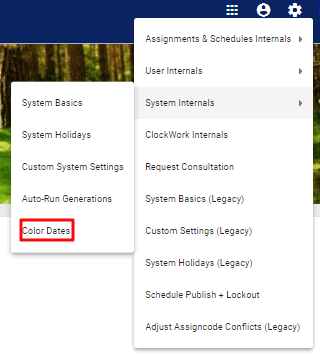
This action will take you to the Color Specific Dates page, where a list of dates highlighted in different colors is displayed.
To add color to a new date, click on the Add Date Coloring button.
In the Edit Record pop-up box, pick a date from the Date menu, the main schedule where the date should appear in a unique color from the Primary Schedule dropdown menu, and, if needed, a second schedule from the Composite Schedule dropdown menu. Then, choose the color by selecting an option from the Color dropdown menu.
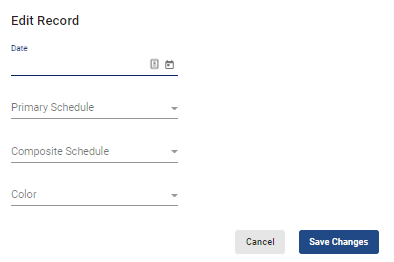
When done, click on the  button.
The date and color change will then appear listed in the Color Specific Dates page.
