 Not seeing a particular option on your
 Assignment Basics
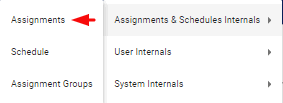
Navigate to the top right corner of the home screen and click on the  System Settings icon. Click on the Assignments & Schedules Internals option.
Select the Assignments option from the given menu.
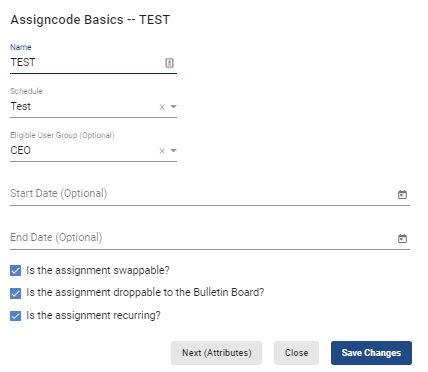
In the Assignment Internals page, select  Assignment Basics to edit the assignment’s name, the schedule it lives on, what user group is eligible to be assigned to said assignment (optional), and the start and end dates for the assignment (optional).
If you add a Start Date  for the assignment in the future, the assignment will not appear on the schedule until that date.
Setting an End Date  for the assignment will functionally deactivate the assignment. If you set the date to the middle of a month, it will appear on that schedule until the following month.
By selecting the  Is the assignment swappable? checkbox, you allow the user to swap the assignment. Leaving it unselected removes that ability.
By selecting the Is the assignment droppable to the Bulletin Board? checkbox, you make it possible for the assignment to be dropped and picked up to/from the Bulletin Board. Leaving it unselected removes that functionality.
If the Bulletin Board checkbox is selected, the following option will appear: Should providers be able to indicate interest level on Bulletin Board?. By selecting this checkbox, users will be allowed to indicate their interest level for that particular assignment.
Finally, by selecting the Is the assignment recurring? checkbox, the assignment will appear in the Recurring Rules tool.
When done, select  to save all edits.