 Not seeing a particular option on your
 Editing Schedules in Internals
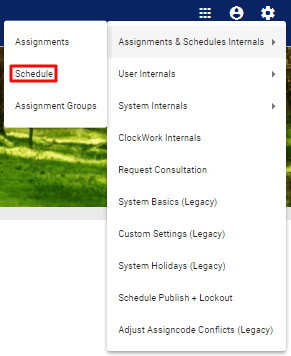
To edit a schedule under Internals, click on the  System Settings icon in the upper right corner of the homescreen. Select Assignment & Schedule Internals and then choose the Schedule option.
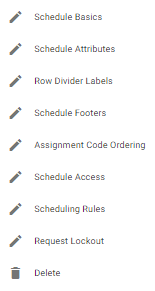
In the Schedule Internals page, click on the  icon next to the schedule you would like to edit. Choose one of the
  editing options from the dropdown menu.
-
Under
Schedule Basics, you can edit the schedule’s name, default layout for admins and users and the schedule category it is listed under on the Schedules flyover. -
Under
Schedule Attributes, you can edit if a schedule is syncable, available on the mobile app and other aesthetics. -
Under
Edit Primary Schedules (only for Composite schedules), you can add or remove Primary schedules that are tied to that Composite schedule. -
Under
Row Divider Labels, you can add or remove header labels to schedules for both by assignment or by user group. -
Under
Assignment Code Ordering, you can edit the display order of assignments on a schedule. -
Under
Request Lockout, you can add a new assignment lockdown, edit, or delete an existing one.
Important Note: The Request Lockout option won’t always be available to all schedules.
Read more about all the above topics in the linked articles listed below.
See the following topics for more information.