 Not seeing a particular option on your
 Exporting and Printing Request Schedules
To export a given request calendar, save it as a PDF or HTML file, and print it, click on  Requests in the homepage’s sidebar. Select a schedule from the flyover menu.
Once the schedule is open, click on the  Calendar icon. This action will prompt the system to display a calendar layout with the list of requests.
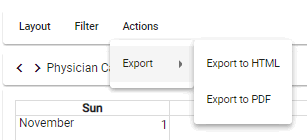
Click on Actions and then choose the Export schedule option. Choose whether you prefer to export the calendar as an HTML or PDF file.
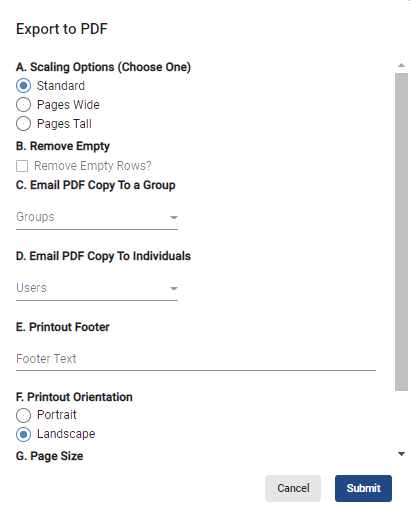
If you choose to export it as a PDF, an Export to PDF window will pop up. Choose how the system should format the schedule by selecting a scaling option from the A. Scaling Options section. Then, choose whether you will send a copy to a group, an individual, or both by choosing the desired option(s) from the C. Email PDF Copy To a Group and D. Email PDF Copy To Individuals dropdown menus.
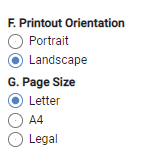
Choose the document’s printout orientation and page size.
You may also add a note to the document by typing the desired text in the E. Printout Footer section or save on paper by clicking on the  Remove Empty Rows? box.
Hit  when done.
If you choose to export as an HTML file, the system will open it automatically in a new tab.