 Not seeing a particular option on your
 Schedule Attributes
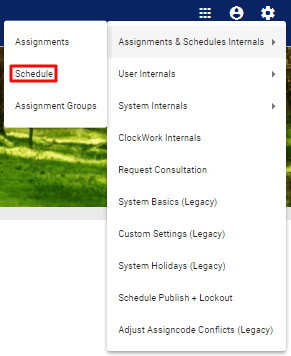
To edit a schedule under Internals, click on the  System Settings icon in the upper right corner of the homescreen. Select Assignment & Schedule Internals and then choose the Schedule option.
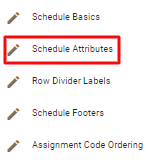
In the Schedule Internals page, click on the  icon next to the schedule you would like to edit. Select the
  Schedule Attributes option.
This action will prompt a Schedule Attributes popup window.
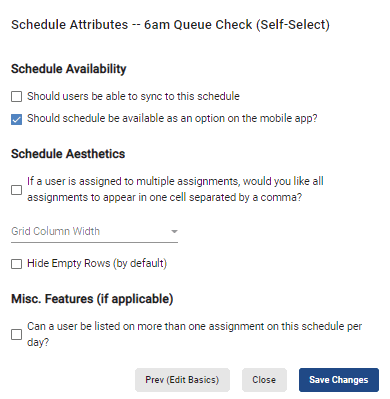
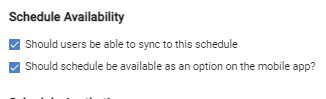
To allow users to sync to the schedule in question, select the  Should users be able to sync to this schedule option. Leaving it unchecked will not give users the ability to sync to the schedule.
To make the schedule available on the mobile app, select the Should schedule be available as an option on the mobile app? option. Leaving it unchecked will remove the schedule from appearing in the mobile app.
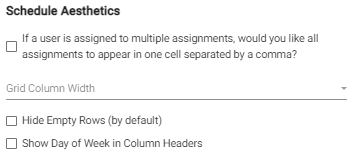
Under Schedule Aesthetics, you may choose to allow multiple assignments for a user to be displayed in the same schedule cell by checking the If a user is assigned to multiple assignments, would you like all assignments to appear in one cell separated by a comma? option. Leaving it unchecked will default to the standard layout of having multiple rows for each user if they are on more than one assignment.
You may also change the width of the grid column by selecting a new option from the Grid Column Width dropdown menu.
By selecting the Hide Empty Rows option, the schedule will be condensed to remove any empty rows. Leaving this option unchecked will allow empty rows on the schedule to be displayed.
And by selecting the Show Day of Week in Column Headers, the schedule will display the days of the week (Mon, Tue, Wed, etc.) alongside the date.
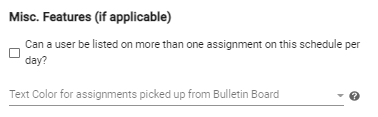
Under Misc. Features, you can choose whether a user can be assigned to more than one task on a particular schedule per day by checking the Can a user be listed on more than one assignment on this schedule per day? option.
You can also change the color used to display the assignments that have been picked up by a user from the Bulletin Board.
After making all necessary changes, click on the  button.