 Not seeing a particular option on your
 Viewing Form Logs
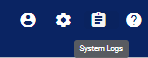
To view form logs, navigate to the  System Logs icon in the upper right corner of the homepage.
Click on the Form Logs option.
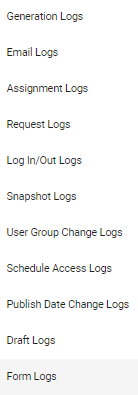
This action will take you to the Form Logs page, where the user has access to a list of forms, which users submitted them and where at, as well as a Filters search feature.

To search for a form by form name, navigate to the System Form field under Filters and either type in the form name or choose from the options provided in the drop-down menu.
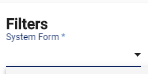
This field has an asterisk next to its name, therefore, it is required when using the Filters feature.
To search for a form by date, navigate to Date Range.
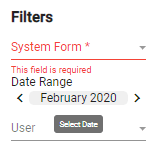
Clicking on the date menu will prompt a pop-up date range box where you can choose a period ranging from recent dates, specific dates, four-week, month, or quarter date ranges, as well as academic, fiscal, or calendar years, or academic, fiscal, or calendar years to date.
You may also pick the current month option or choose a specific date range by entering the date manually.
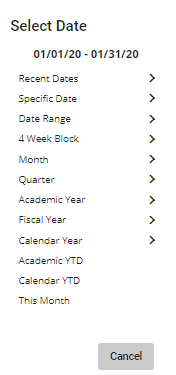
Once a date range has been selected, click on the  button.
To search for a form by user, navigate to the User field.
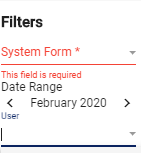
Either type in or choose the user name from the drop-down menu.
When you’re done, click on the  button. That will prompt the system to populate a list of logs that match your filters.