 Not seeing a particular option on your
 Viewing User Extended Info Change Logs
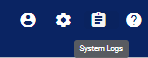
To view logs of updates made to users’ extended information such as vacation stat values and additional contact information such as phone, pager numbers, and secondary email addresses, navigate to the  System Logs icon in the upper right corner of the homepage.
Click on the User Extended Info Change Log option.
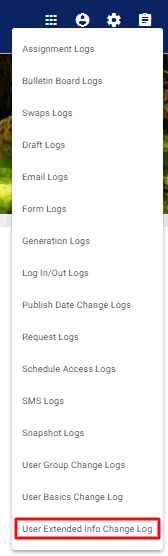
This action will take you to the User Extended Info Change Log page where you will have access to a filtering tool as well as a list of users who initiated the updates, the user account that was updated, the updated field, timestamp, and before/after values.

Filtering Extended Logs
With the help of the Filters tool, the user can search for a particular log by date, user name (account that incurred the updates), or actor name (user who initiated logged updates).
To search for a log by date, navigate to the Filters gadget and click on Date Range. Choose from one of the given options.
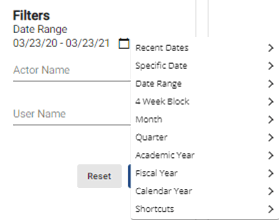
Once done, the system will populate the widget list with logs that meet the chosen criteria.
To search logs by the user’s account, navigate to User Name and either type in the name you’re looking for or select the option(s) from the dropdown menu.
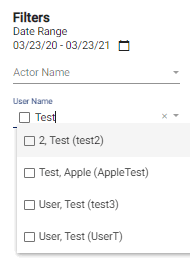
Once done, the system will populate the widget list with logs that meet the chosen criteria.
To search logs by the user who made the updates, navigate to Actor Name and either type in the name you’re looking for or select the option(s) from the dropdown menu.
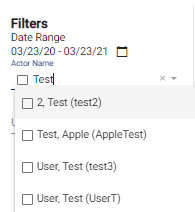
Once done, the system will populate the widget list with logs that meet the chosen criteria.